Checklist Before Presenting Ad Results to a Client

Sanskar Tiwari
Why the prep matters more than the deck
A monthly ad review is usually a 30 minute call. The client remembers maybe three things from it: whether the money worked, what you're changing, and whether you looked like you had it under control.
That last one gets decided in the first two minutes. If you share your screen and the client sees a cluttered desktop, a Slack ping from another client, and you clicking around Ads Manager looking for the right date range, you've lost a bit of trust before you've said a single number.
So here's the checklist I go through before any call where I'm showing ad results. It takes about 30 minutes the first few times and closer to 15 once it's a habit.
1. Clean the screen (10 minutes before)
Do this before you join, not after you hit Share.
On a Mac, the usual offenders are:
- Desktop icons. Screenshots named "Screenshot 2026-10-03 at 11.42.08", invoices, a folder called "client stuff old". All visible the second you share your whole screen.
- Notifications. iMessage, WhatsApp, Slack, Mail, calendar reminders. Turn on a Focus mode so nothing slides in mid-call.
- The Dock and menu bar. Badges on Slack and Mail tell the client you have 47 unread messages. Not a disaster, but not great.
- Open apps. Every window you don't need for this call should be minimized or closed.
- Wallpaper. A plain colour is safest. Family photos and beach shots are fine for you, odd on a business call.
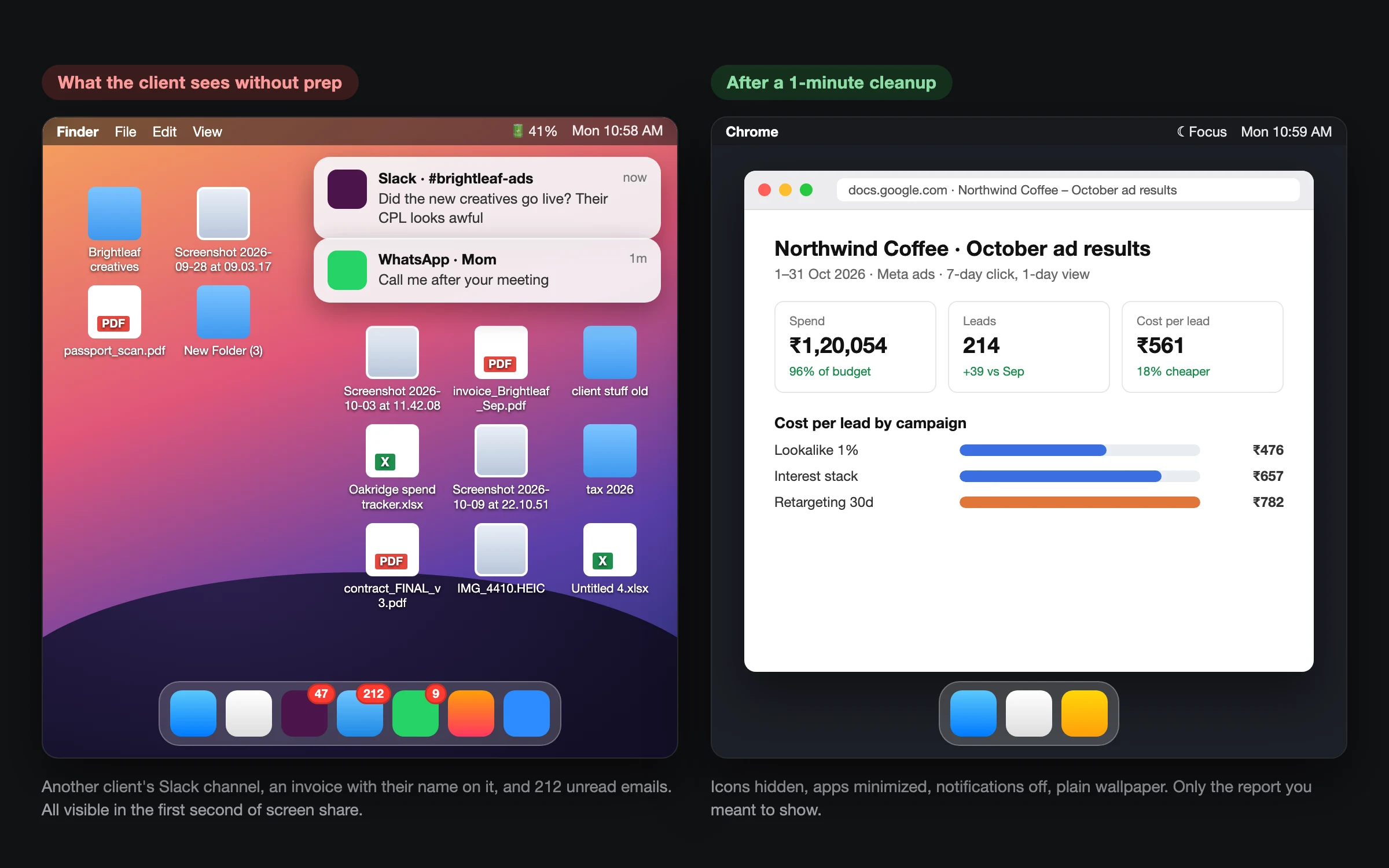
You can do all of this by hand. I wrote up the manual steps in how to prepare your screen for a presentation, and if notifications are the part you always forget, there's a separate guide on turning off notifications before a meeting. QuickPresent does the whole list with one click on Mac and Windows and puts it all back after the call, which is why I built it. Either way, the point is the same: the client should only see what you meant to show.
One thing worth doing even with a clean desktop: share a single window, not your entire screen, whenever the tool allows it. That way a stray notification only shows up on your side.
2. Hide the other clients
This one catches agencies and freelancers more than anyone.
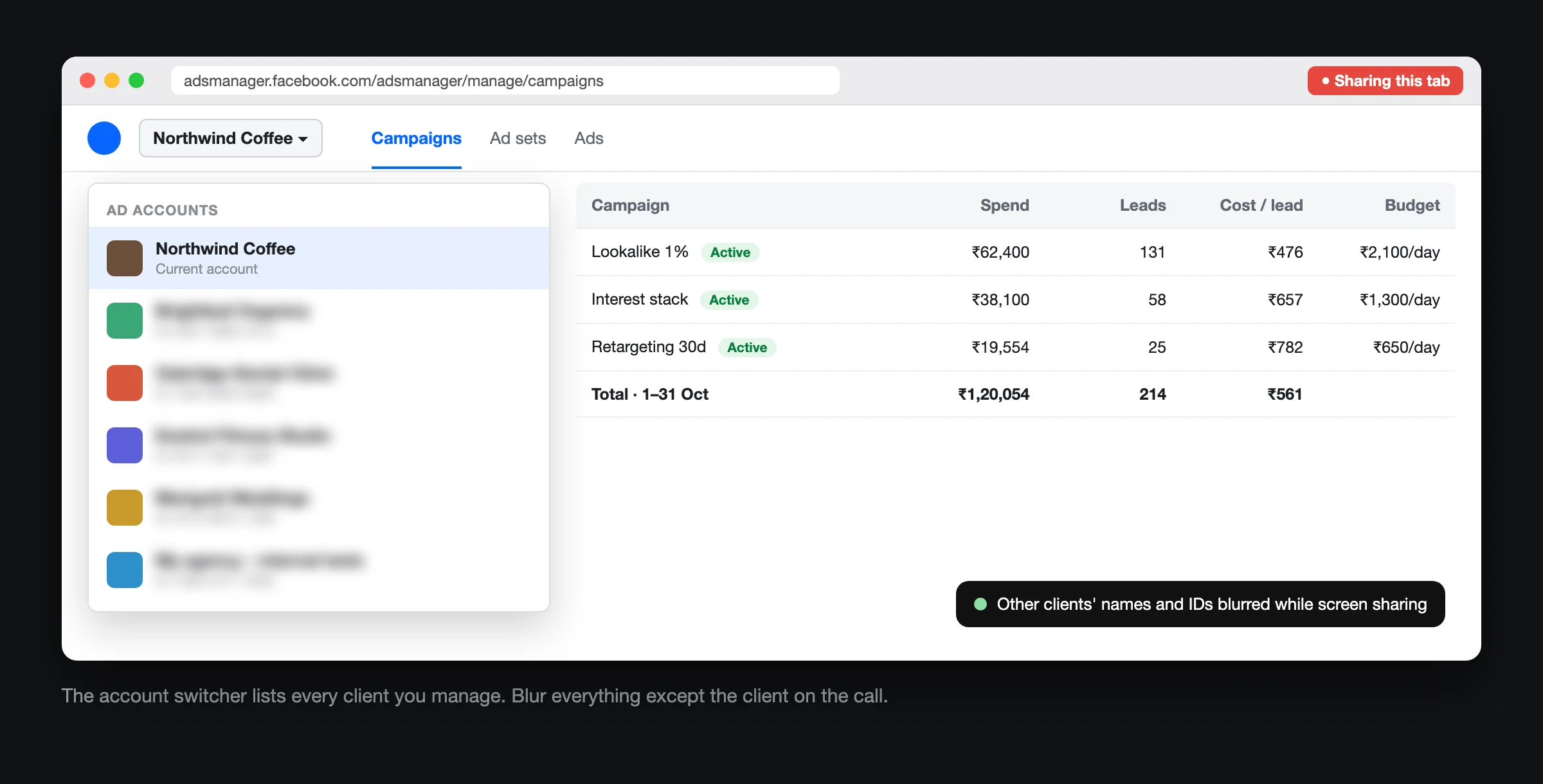
Your Ads Manager account switcher lists every ad account you manage. Your browser bookmarks bar might say "Client A dashboard", "Client B reporting". Your Google Sheets recent files show other clients' spend reports. Your email inbox, if it flashes on screen for half a second, shows names.
None of that is the client's business, and some of it might be covered by an NDA. Before the call:
- Open a separate browser profile just for client calls, with no bookmarks bar.
- Pre-load the exact tabs you'll need so you never touch the account switcher live.
- Close your inbox and your project management tool.
If you have to show a screen where other clients' data is visible, like a shared dashboard or a Business Manager page with several accounts listed, blur those parts. Blurweb lets you blur other clients' names and numbers on any web page while you screen share, so you can stay in the real tool without leaking anything.
3. Prepare the numbers (the morning of the call)
The worst version of an ad review is opening Ads Manager live and building the report while the client watches. Columns are wrong, attribution window is wrong, the date range resets, and you're doing mental maths out loud.
Pull the numbers before the call. For a typical Meta ads review, I want:
- Spend for the period and against the agreed budget.
- Results that the client actually cares about. Purchases, leads, booked calls. Not reach or impressions unless awareness was the stated goal.
- Cost per result this period vs last period.
- ROAS or revenue if there's purchase tracking, with the attribution window stated (7-day click, 1-day view, whatever you used).
- Top 2 and bottom 2 ads or ad sets by cost per result.
- Anything that changed: new creatives launched, audiences paused, budget moved.
Write these in a short doc or a single slide. Six or seven numbers. If you have twenty, you haven't decided what matters yet.
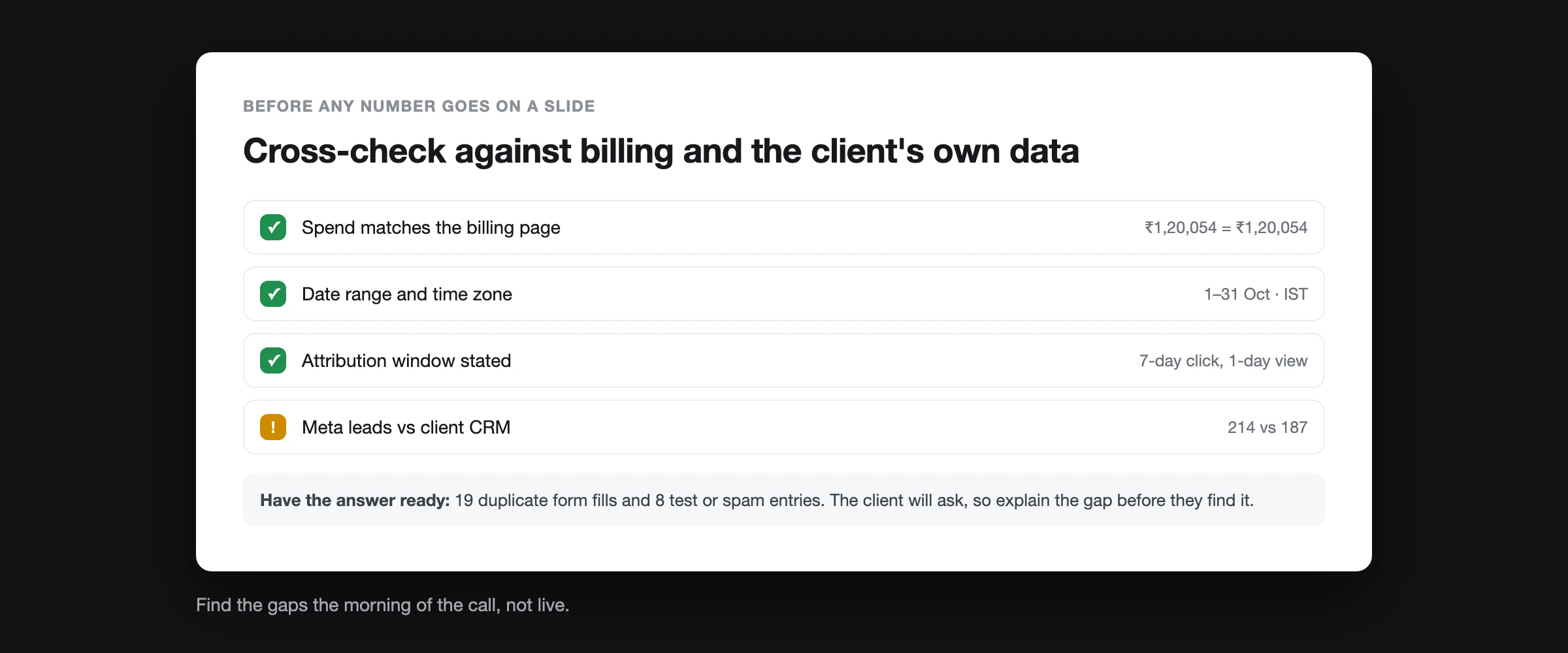
A quick sanity check before you put a number in front of a client: does spend in your summary match the billing page? Does the result count roughly match what the client sees in their own CRM or Shopify? If Meta says 214 leads and the CRM shows 187, you want to know that before the client brings it up, and have an answer ready (duplicate form fills, test entries, spam). For e-commerce it's the same idea with purchases: attribution overlap, view-through conversions and refunds all open a gap between Meta and Shopify.
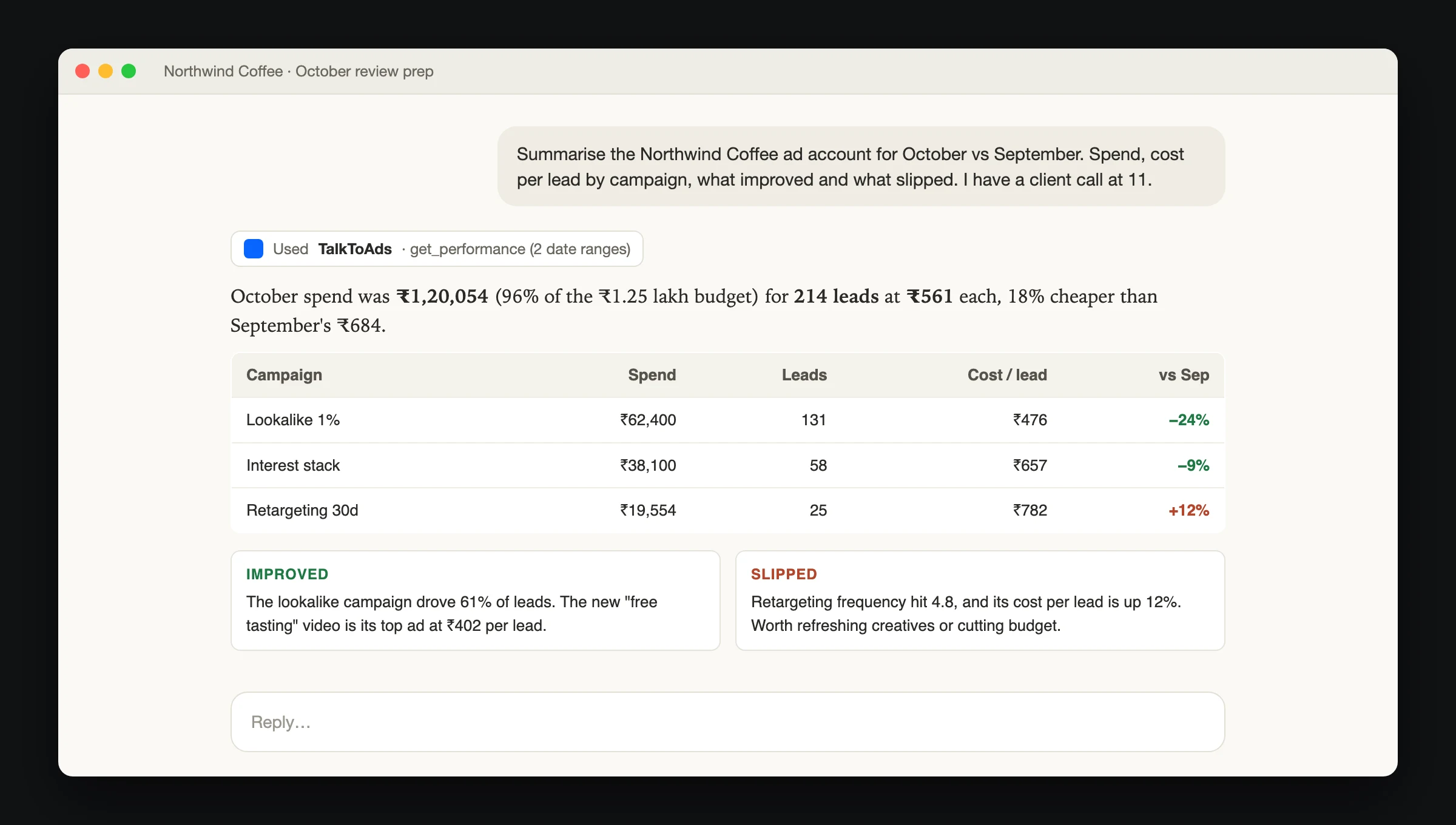
These days I don't do the pulling by hand either. I connect the ad account to an AI assistant and have Claude summarise the account the morning of the call: spend, cost per result by campaign, what's improved and what's slipped since last month. It gives me a draft in a couple of minutes, and I still check the key figures against Ads Manager before anything goes on a slide. The AI is a first pass, not the source of truth.
4. Write a 5-line agenda
Clients relax when they know the shape of the call. Put the agenda at the top of your doc or first slide and read it out in the first 30 seconds.
Something like:
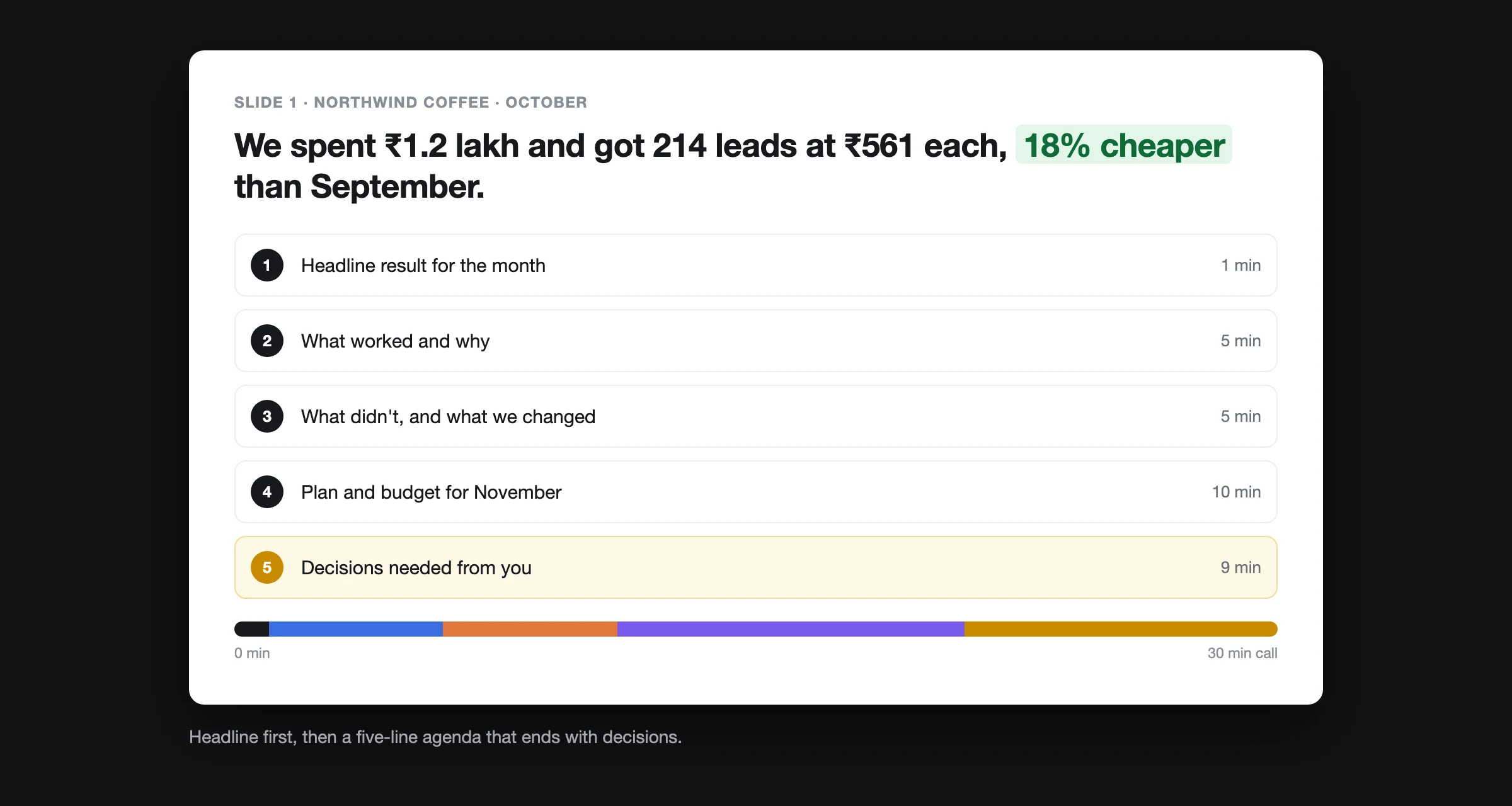
- Headline result for the month (1 minute)
- What worked and why (5 minutes)
- What didn't and what we did about it (5 minutes)
- Plan and budget for next month (10 minutes)
- Questions and decisions needed from you (rest of the call)
Notice that the last item is decisions. Every review should end with the client agreeing to something: a budget change, new creatives, a landing page fix. If nothing gets decided, the call was a status update that could have been an email.
5. Lead with the headline, not the dashboard
Open with one sentence that answers "did it work?"
"We spent ₹1.2 lakh this month and got 214 leads at ₹561 each, which is 18% cheaper than September."
Then show the supporting detail. Don't open Ads Manager first and make the client figure out the story from 14 columns. Most clients aren't marketers. They want to know if their money is doing its job.
If the month was bad, still lead with the headline. "Cost per lead went up 30% this month. Here's why and here's what we've already changed." Clients handle bad news far better than they handle the feeling that you're avoiding it.
6. Decide what not to show
This is the part most checklists skip. Some things don't belong on screen during a client call:
- Other clients' accounts, results or creatives. Even as a "here's what worked for someone else" example, unless you have permission.
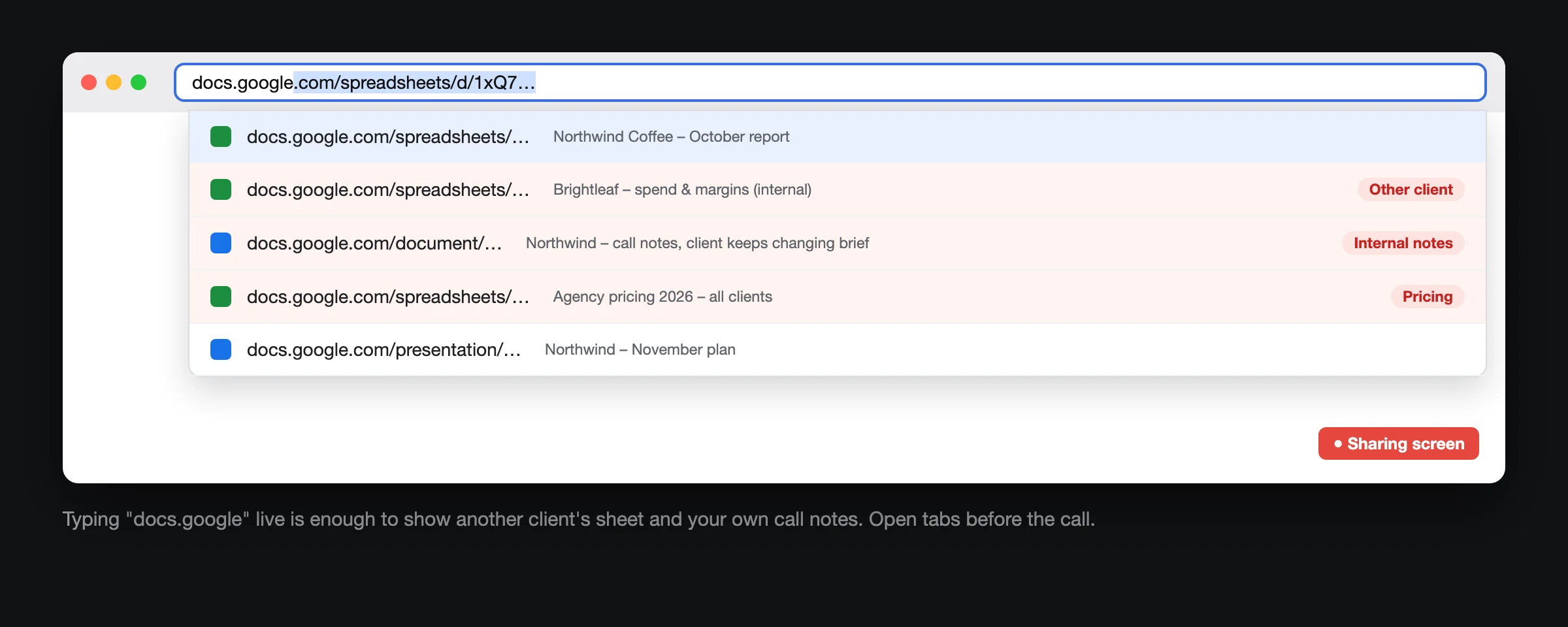
- Your internal notes. The doc where you wrote "client keeps changing the brief" is not the doc to share.
- Raw Ads Manager with every column. Frequency, CPM, link CTR and hook rate matter to you. To most clients they're noise. Have them ready if asked, don't lead with them.
- Billing and payment method screens. Card details, other accounts' invoices, your agency's billing setup.
- Unfinished experiments. A test that's been running for two days with 3 conversions doesn't tell anyone anything yet. Mention it, don't chart it.
- Your browser history and autocomplete. Typing a URL live and having it suggest something embarrassing is a classic. Use bookmarks or pre-opened tabs.
A simple rule: if you'd be uncomfortable with the client screenshotting it, it shouldn't be on screen.
7. Have the next actions ready to go
Before the call, decide what you'll recommend and, if you can, prepare the change so it's ready to approve.
If you're going to suggest pausing two ad sets and moving their budget to the best performer, know exactly which ad sets and how much. If you're proposing new creatives, have rough versions or references ready. "We'll look into it" is a weaker answer than "here are two options, which one do you want?"
After the call, send a short recap within the hour: what was agreed, who does what, by when. Three to five bullet points. This is the email the client forwards to their boss, so make it easy to forward.
8. Do a 2-minute test run
Right before joining:
- Share your screen to yourself (Zoom and Google Meet both let you start a meeting alone) and check what's actually visible.
- Click through every tab you plan to show.
- Check your mic and camera, especially if you muted system audio while cleaning up.
- Check the time zone on your Ads Manager date range. A report pulled in the wrong time zone can shift a day's spend.
It's two minutes. I skipped it once and spent the first part of a call explaining why the client's spend looked a day off.
The short version
If you only remember one thing: do the prep before the call, not during it.
- Clean screen, notifications off, single window shared.
- Other clients hidden or blurred.
- Six or seven numbers, pulled and checked against billing and the client's own data.
- Five-line agenda that ends with decisions.
- Headline first, detail second.
- A clear list of what stays off screen.
- Recommendations ready to approve, recap sent within the hour.
The first time it feels like a lot. By the fourth client call it's muscle memory, and the calls get shorter because nobody's waiting on you to find a tab.